OCR Service Tutorial
This is a step-by-step walkthrough that shows how to call the CogStack OCR service over HTTP: OCR of scanned files, and text extraction from a Word document.
OCR is optical character recognition. Use this when you have images or scanned in documents containing text. The OCR service is also able to work with machine readable documents that do not need OCR, like word documents or pdfs containing text. This tutorial will show how it can parse both in the same way.
Overview
Who is this tutorial for:
This is for developers, data engineers, and analysts who want a quick, practical example of how to integrate OCR Service into a Python workflow (and later into a notebook-based analysis).
What will the tutorial do:
- Define sample files and the service URL.
- OCR a PNG of a scanned document, by calling the ocr-service API
- Extract text from a Word document
- OCR a scanned PDF
Prerequisites
The best way to run this notebook interactively is to run the CogStack Community Edition with Helm. Look at https://docs.cogstack.org/ to get started.
Initialisation: Define the inputs and services
We pick three sample files and the HTTP endpoint we will call.
The samples are a PNG of a scanned document, a Word document that already contains text, and a scanned PDF:

For the service URL, if using the cogstack community edition helm chart, this should be setup for you automatically using kubernetes services and env vars. Otherwise change it accordingly.
import json
import os

import requests

ocr_base_url = os.getenv(
    "OCR_SERVICE_URL", "http://cogstack-ocr-service:8090"
).rstrip("/")

ocr_url = ocr_base_url + "/api/process"

base_url = "https://raw.githubusercontent.com/CogStack/cogstack-platform/ocr-service-v1.1.3/apps/ocr-service/ocr_service/tests/resources/docs"
os.makedirs("data/ocr-service-tutorial", exist_ok=True)

open("data/ocr-service-tutorial/pat_id_1.png", "wb").write(requests.get(f"{base_url}/generic/pat_id_1.png").content)
open("data/ocr-service-tutorial/pat_id_1.docx", "wb").write(requests.get(f"{base_url}/generic/pat_id_1.docx").content)
open("data/ocr-service-tutorial/pat_id_1.pdf", "wb").write(requests.get(f"{base_url}/generic/pat_id_1.pdf").content)
OCR a scanned document
We can now use ocr service to read text from an image of a page.
We have a PNG file that represents a scanned document. It does not already contain text, so the service will need to OCR it.
The scanned document is a PNG file, that looks like this:
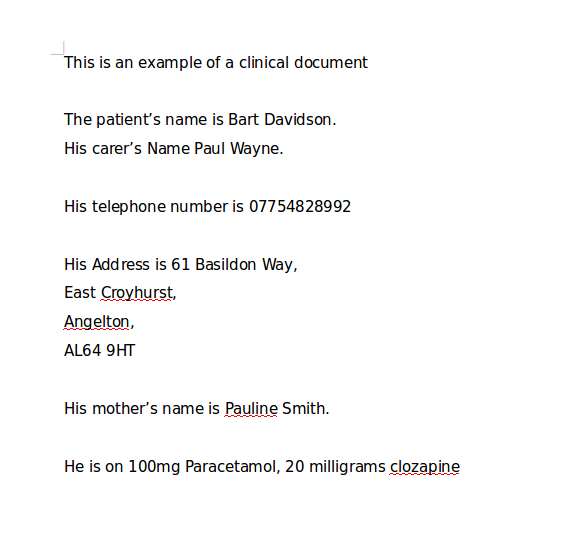
We will send this image to the ocr service and print the text it recovers.
with open("data/ocr-service-tutorial/pat_id_1.png", "rb") as f:
    png_result = requests.post(ocr_url, files={"file": ("pat_id_1.png", f)}).json()

print("=== OCR Service: PNG ===")
print(png_result.get("result").get("text"))
From the above result, we can see that the service has recovered the clinical note from the scanned image. The wording can differ slightly, because the service is reading an image of the page.
We can see the raw JSON response from ocr service by printing it
print("=== OCR Service: Raw results ===")
print(json.dumps(png_result, indent=2))
Extract text from a Word document
We can also use ocr service to extract text from a Word file.
This document already contains text, so the service can read it without OCR.
with open("data/ocr-service-tutorial/pat_id_1.docx", "rb") as f:
    docx_result = requests.post(ocr_url, files={"file": ("pat_id_1.docx", f)}).json()

print("=== OCR Service: Word document ===")
print(docx_result.get("result").get("text"))
From the above result, we can see that the service has extracted the clinical note from the Word document.
OCR a scanned PDF
A scanned PDF is the same idea as the PNG: the pages are images, so the service uses OCR to recover the text.
with open("data/ocr-service-tutorial/pat_id_1.pdf", "rb") as f:
    pdf_result = requests.post(ocr_url, files={"file": ("pat_id_1.pdf", f)}).json()

print("=== OCR Service: scanned PDF ===")
print(pdf_result.get("result").get("text"))
From the above result, we can see that the service has recovered text from the scanned PDF.
Summary
This is the end of this tutorial.
We can see by calling the OCR service, we are able to extract text from images, Word files, and scanned PDFs just by calling one HTTP API.
What next?
Take the extracted text and follow the MedCAT + OpenSearch end-to-end tutorial (medcat-opensearch-e2e.ipynb). That shows how to ingest the text into OpenSearch and run MedCAT on top.